
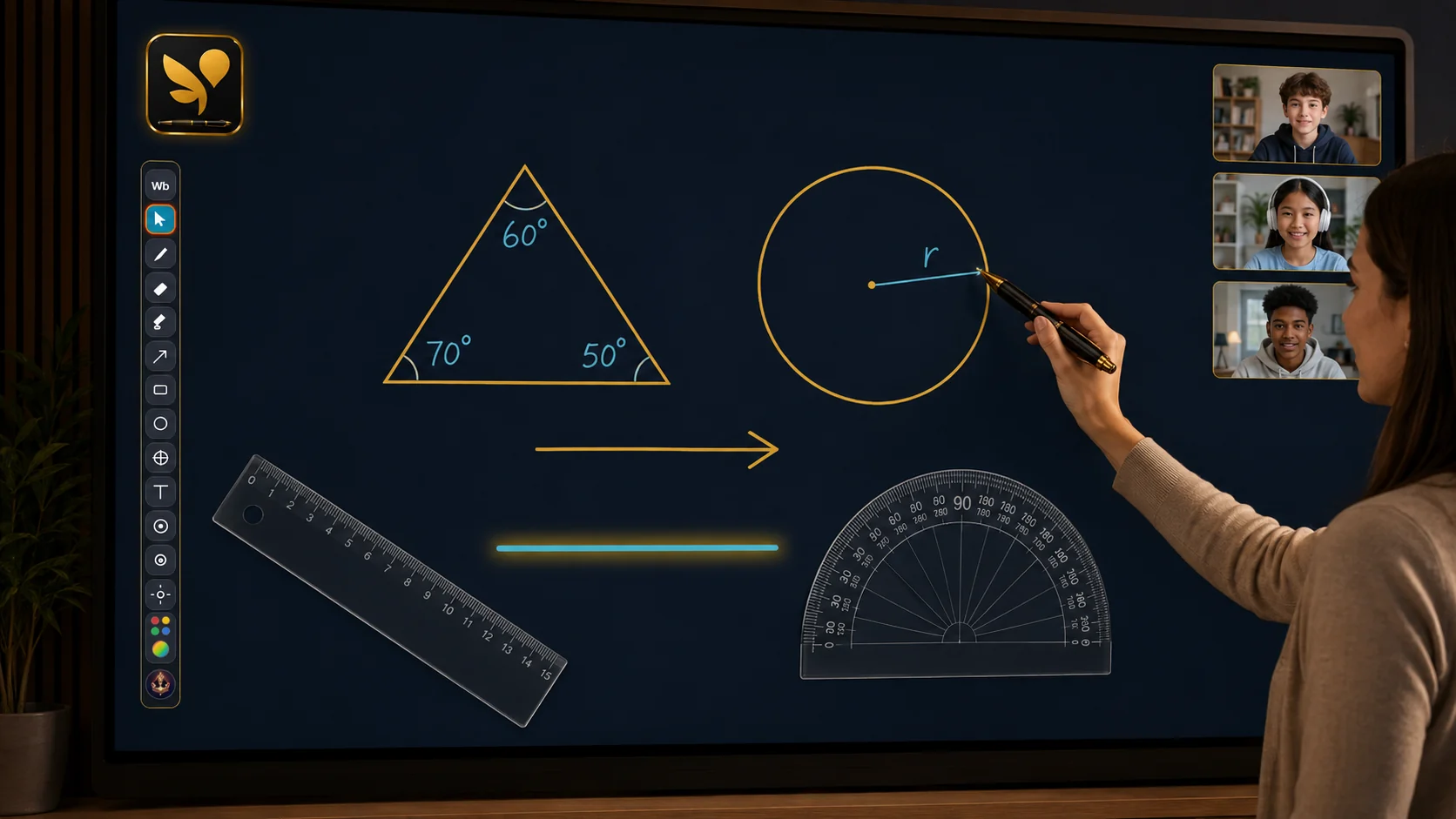
OS Pen gives teachers an annotation layer over the material they already use: slides, PDFs, websites, diagrams, recorded lessons and the Windows desktop. The lesson stays in its original app while the teacher writes, highlights and points on top of it.
Live lessons and presentations
A teacher can keep a PowerPoint deck, browser lesson or learning platform open and annotate without moving content into a separate whiteboard application. Highlighter is useful for key phrases; arrows and rectangles can identify parts of a diagram; Fade can reduce old marks when the explanation moves forward.
Math, science and technical subjects
- Build a geometry construction with Line, Circle, Ruler, Protractor and Compass
- Work through an equation one stage at a time with Pen, Text and Step markers
- Trace a graph or diagram while Coordinates provide a live positional reference
- Freeze a moving screen before explaining a frame from a simulation or video
- Use Magnifier when a small label or interface detail needs closer inspection
PDFs, worksheets and feedback
Teachers can mark a worksheet or PDF on screen, capture the relevant region and export the result. OCR can extract visible text for reuse, while Redact can cover personal or sensitive information before a capture is shared.
A simple lesson workflow
- Open the slide deck, worksheet, website or application used for the lesson.
- Choose the horizontal toolbar for broad desktop access or the compact vertical toolbar at the screen edge.
- Select Pen, Highlighter, shapes or a precision tool and explain the material live.
- Use a new board page when the current explanation becomes crowded.
- Save, capture, export or record only the material that students need afterward.
Windows Premium can host a local Wi-Fi/LAN Collaboration session. Supported Android devices can join the shared annotation session on the same network; Android does not host the room.
Privacy in the classroom
Core annotations, screenshots and sessions stay on the device unless the user chooses to share an exported file. Before recording or distributing classroom material, teachers should follow their institution's consent, student-privacy and retention requirements.