
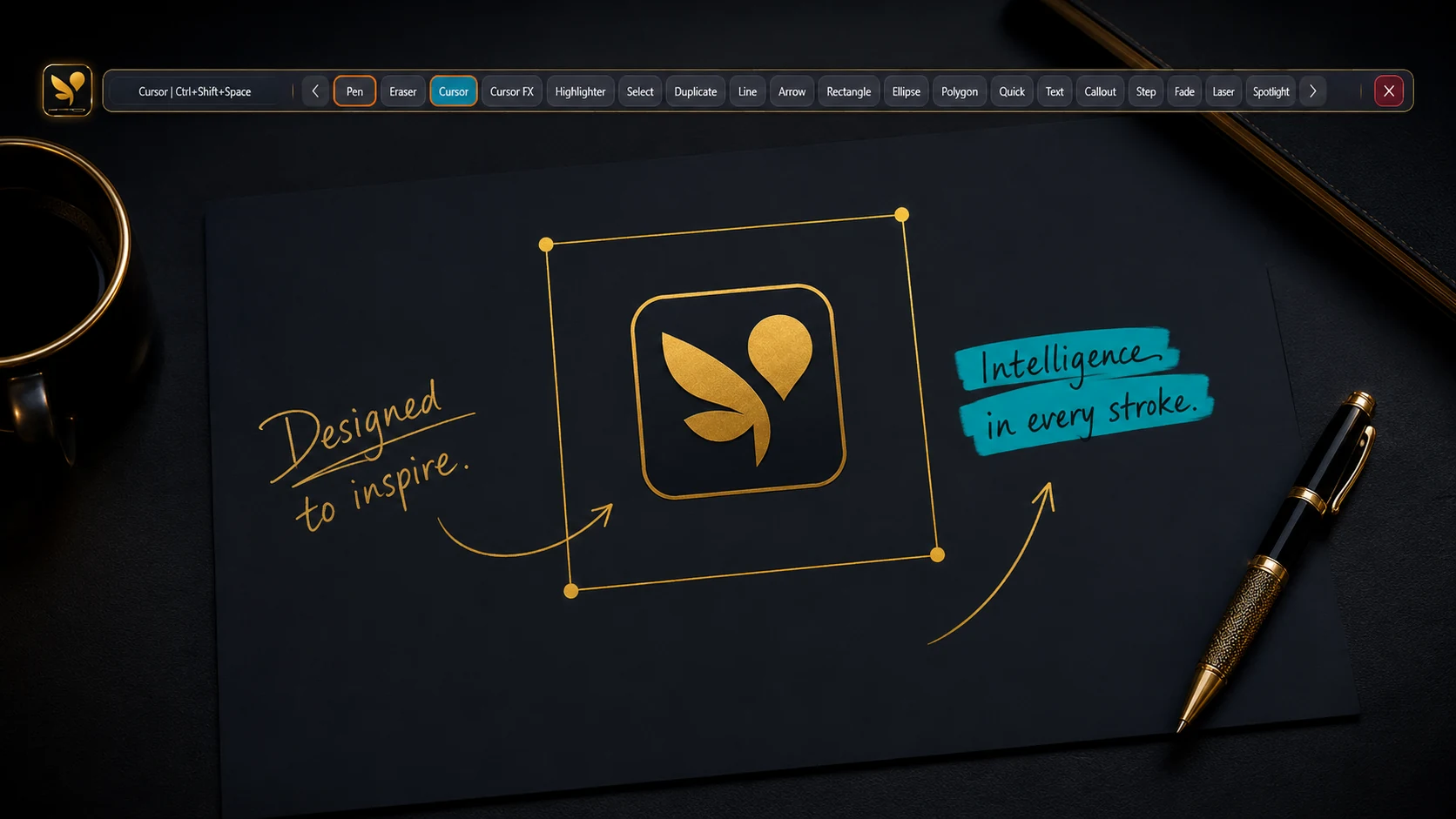
OS Pen turns any screen into a canvas. It's a floating toolbar that sits on top of whatever you're looking at — any app, browser tab, video call, or the desktop itself — and lets you draw, highlight, and mark it up in real time, without switching windows or opening a separate program. This guide walks through what it actually does, how to get started, and every feature in it, so nothing gets missed.
The horizontal toolbar is designed for quick desktop access; the compact vertical toolbar keeps core tools close to the edge of the screen. The Get Started page includes the current interactive tool guide and available demonstration videos.
Who it's for
OS Pen is built for anyone who needs to point at, draw on, or teach from a screen — not just designers. The most common use cases:
- Teachers & trainers — a ruler, protractor, and a real whiteboard make live lessons and technical explanations easier to follow.
- Presenters & sales teams — spotlight, laser pointer, and a timer keep every demo focused and on schedule.
- Streamers & creators — GIF recording and a full annotation toolkit for tutorials, reactions, and walkthroughs.
- IT & support teams — mark up a screen live to explain a fix, then export a redacted PDF for the ticket.
- Also used by tutors, coaching institutes, schools, colleges, corporate trainers, YouTubers, and anyone working on an interactive smart-board or Windows touchscreen.
Getting started, step by step
- Download OS Pen — the free trial needs a verified email and no card, and unlocks every tool for 14 days.
- Open a tool from the floating toolbar — it overlays your screen in one click and follows you across apps, tabs, and calls.
- Start annotating — draw, present, or record right away. Activate a paid license whenever you're ready; your work isn't interrupted.
How to activate your license
Once you've purchased a plan, activation is a five-step process:
- Download and install OS Pen if you haven't already.
- Open the app and go to Profile, or Account & License.
- Sign in with your registered Snowfairy account.
- Enter the license key from your purchase confirmation email.
- Click Activate — the license also shows up in your Snowfairy account from then on.
Every feature, by category
Drawing & capture
- Pen, highlighter, eraser, shapes, and text tools
- Instant screenshot with a built-in editor for custom-area capture and touch-ups
- ScreenEdit — an advanced screenshot editor (Premium)
- One-click PNG export straight to your clipboard (Premium)
- Board mode (black & white) and grid mode
- Custom background (Premium)
- Session save & load, with crash recovery
- Select, duplicate, and move objects on the board
- Polygon tool
- Fading ink and 3D text (Premium)
Precision & teaching tools
- Ruler, protractor, and compass with snap-to-angle
- Live coordinate readout while drawing (Premium)
- Magnifier for pixel-level detail
Presenting
- Spotlight and curtain tools to hide distractions and focus attention (curtain is Premium)
- Laser pointer with an adjustable trail
- Session timer (Premium) and step numbering
- Cursor FX — halo and click ripples
- Screen Freeze — pause the live view while you annotate underneath it (Premium)
- Multi-page board — add, switch, and delete pages mid-session (Premium)
- Webcam overlay — a floating camera feed while you present (Premium)
- Microphone recording — narrate alongside the board (Premium)
- Draw over any window or app on screen
Recording & export
- Replay and GIF recording of any session (Premium)
- PDF export with redaction built in, plus multi-photo batch and file import
- OCR — copy text straight off your screen (Premium)
- Shape Recognition — snaps freehand drawing into clean lines, rectangles, ellipses, and triangles (Premium)
- Session history (Premium)
- Wi-Fi/LAN Collaboration (Beta) — included free with Premium
- Creator Recorder (Beta) — also included free with Premium: local screen recording with microphone and an optional creator-camera overlay
Workflow & personalization
- Callout boxes with pointer tails
- Quick radial tool picker
- Customizable vertical toolbar strip
Inside Wi-Fi/LAN Collaboration — how it actually works
This is the feature covered in our design-review article below, so here's the mechanism in full. Collaboration connects participating devices directly over your local network using a plain TCP socket — there's no internet connection, no Snowfairy server, and no third-party signaling service involved in setting up or running a session.
- The host (always a Windows device) shares a session room code. A joining device uses that code to connect directly over the local network.
- Everything exchanged during the session — every stroke and annotation — is encrypted with a key derived from the room code (AES-256-GCM).
- Windows acts as the host in a star topology, relaying each participant's drawing events to everyone else connected.
- Once connected, participants get full read/write annotation access — everyone can draw live, not just watch.
- Android can join a session but can't host one: mobile operating systems suspend or kill background apps, which would silently drop the session for everyone if a phone tried to host.
- Session quality and how many people can join smoothly depend on your network's own speed, stability, and firewall/router configuration.
Platform availability
OS Pen currently runs on Windows (11, or Windows 10 updated in 2020 or later) and has a companion Android app for joining sessions and doing touch-based annotation on the go. There's no Mac or Linux version at this time.
System requirements
Windows
- Windows 11, or Windows 10 updated in 2020 or later
- 4 GB RAM minimum, 8 GB recommended
- Under 1 GB of free storage
- Internet required for activation, registration, updates, and periodic license verification
- Creator Recorder (optional): 8 GB RAM recommended; automatic camera-background removal needs 64-bit Windows; multi-monitor recording with background removal wants 16 GB+ RAM and a modern GPU
Android
- Android 7.0 (Nougat) or newer
- 3 GB RAM minimum, 4 GB+ recommended
- 250 MB of free storage
- Internet needed for activation, updates, and license verification; Google Play Services required for Google sign-in
Pricing & licensing
OS Pen includes a free Windows mode with Cursor, Pen, Eraser, and Quick Screenshot. A verified account can start the 14-day all-tools trial without a separate test license or credit card. Paid plans unlock the applicable Standard or Premium feature set:
- Windows Premium — $67.99/year or $6.99/month — the full feature set, including Wi-Fi/LAN Collaboration and Creator Recorder
- Windows Standard — $34.99/year, or a one-time $99.99 Lifetime launch offer for the first 10,000 eligible global purchases
- Android Basic — $14.99/year; Android Pro — $39.99/year; Android Basic Lifetime — a one-time $39.99 launch offer for the first 7,000 eligible global purchases
- Regional prices, applicable taxes, launch-offer availability, and checkout currency are shown on the live pricing page
- Custom/enterprise licensing available for schools and companies needing 10+ devices
Each OS Pen license is bound to its registered email and one device. Reinstalling on the same Windows installation can restore it after online sign-in. A different device cannot claim it automatically. Support may approve at most one free transfer after verifying a documented case and retiring the old installation; later approved transfers cost 50% of the current regular plan price. Internet is required for activation and reinstall restoration. Monthly and yearly access ends on the paid-through date shown for the license.
Privacy — what actually leaves your device
OS Pen's own claims are specific here, so it's worth quoting them directly: core drawing and annotation tools work offline after activation, and “your annotations, screenshots, and sessions stay on your device.” Crash diagnostics, if you ever choose to share one, are written to a local file first and “never include your screen content, ink strokes, file names, or the contents of any file you have annotated.” Collaboration sessions never touch a Snowfairy server at all — they're local-network-only and end-to-end encrypted, as covered above. Creator Recorder works the same way: recording happens locally, and nothing is uploaded unless you explicitly share the file yourself.
Frequently asked
- Is there a Mac or Linux version? Not currently — Windows and Android (Beta) only.
- Can I upgrade from Standard to Premium later? Not automatically — you'd purchase a new Premium license.
- Does the mobile/tablet plan support collaboration? It can join a session hosted from a Windows Premium device with full read/write access, but it can't host one itself.
- Do you offer refunds? It depends on how the purchase was processed — non-India purchases route through Paddle's own statutory refund windows by country; India purchases are handled under Snowfairy's own terms. Check the refund policy for your region's exact window.
- Is there a free trial? Yes — 14 days, every tool unlocked, no card required, one trial per verified account and per device.