
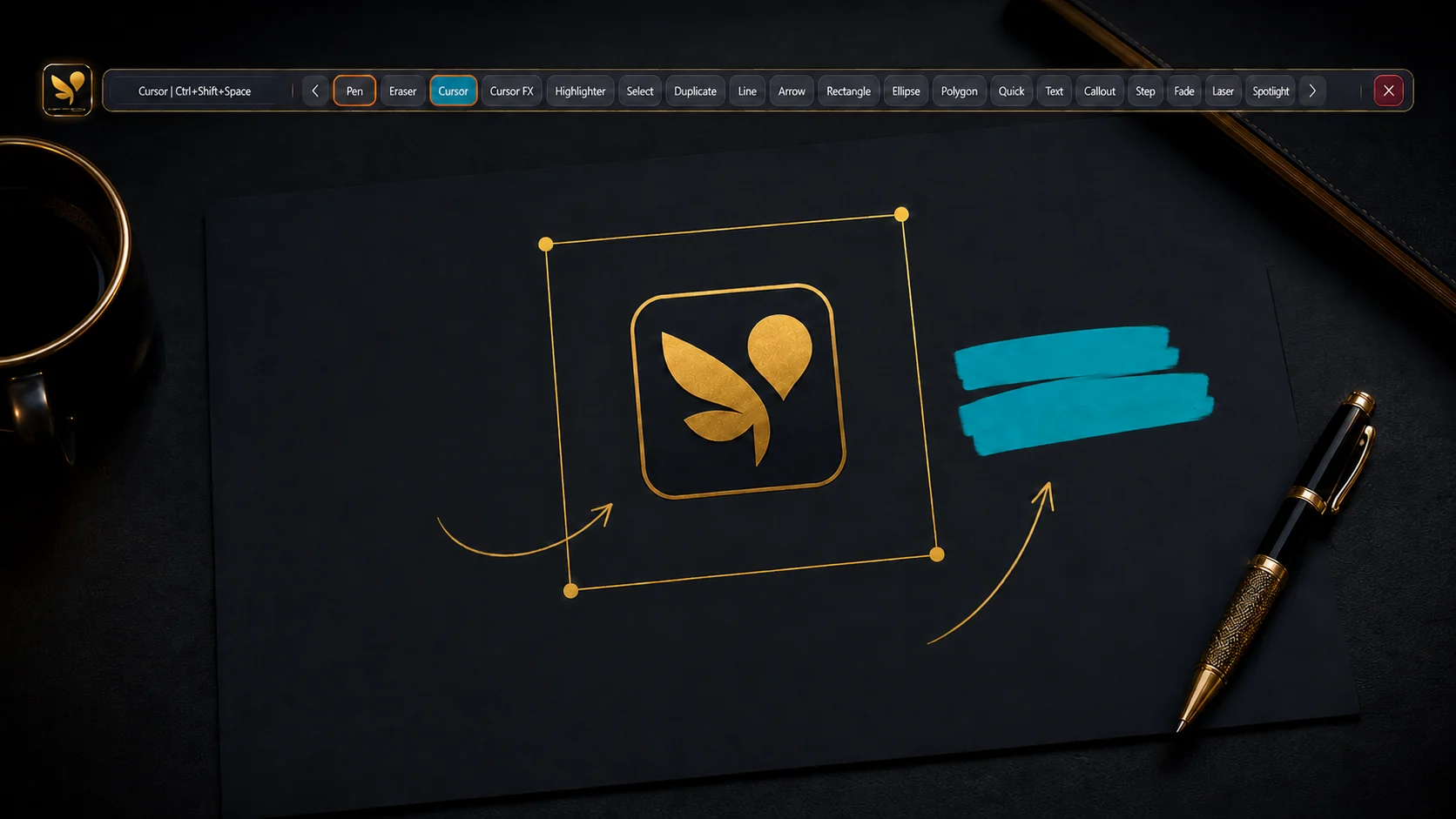
A presentation often needs explanation that was not written into the original slide or PDF. OS Pen places annotation tools over the visible Windows screen, letting you write, highlight, point and add shapes while PowerPoint, a PDF reader or a browser remains open underneath.
Set up before the presentation
- Open the PowerPoint deck or PDF and confirm that it displays correctly at the presentation resolution.
- Launch OS Pen and position the floating toolbar where it does not cover important controls.
- Choose the pen colours and brush size that remain visible against the document background.
- Test Cursor mode so you can advance slides, scroll pages and operate links.
- Choose how you will capture or export any annotations that must be shared after the session.
Screen annotations are useful for a live explanation, but they are not automatically the same as editing the source PowerPoint or PDF file. Capture or export the result when you need a separate record, and save source-document edits through the original application.
Annotate a PowerPoint presentation
Start the slideshow or keep PowerPoint in the view you normally present. Select Pen for written explanations, Arrow or shapes for structured diagrams, and Highlighter for short emphasis. Switch to Cursor before advancing a slide or using PowerPoint controls, then return to the required annotation tool.
Make each mark readable
- Use a contrasting colour against the slide background.
- Keep handwriting short and place it away from existing labels.
- Use arrows and shapes for relationships instead of circling everything freehand.
- Clear temporary marks before moving to a slide where they are no longer relevant.
- Use Spotlight or Laser Pointer when the emphasis should disappear rather than remain on the canvas.
Annotate PDF pages
Open the PDF in your preferred Windows reader or browser. Use Cursor to scroll or change pages and a drawing tool to annotate the visible content. For long documents, use the OS Pen multi-page workspace where it fits the task, or capture selected pages and regions that need a durable annotated copy.
Handle dense documents
For contracts, reports and research papers, avoid placing broad opaque marks over important text. Highlighter, arrows and compact labels preserve context. Redaction tools should be used deliberately and the exported result should be checked before it is shared.
Use annotation in online meetings
When sharing your screen through a meeting app, keep OS Pen above the presentation window and verify that the shared view includes the annotation layer. A short test before attendees join confirms that the selected screen or desktop source shows both the document and your marks.
Save and share the useful result
- Take a screenshot when a completed explanation should become an image.
- Use Region PNG when only one area is relevant.
- Copy a capture to the clipboard for quick use in chat or a document.
- Use the supported PDF workflow for a document-style result and inspect every exported page.
- Keep confidential information out of captures, or apply and verify redaction before sharing.
A reliable presentation routine
Prepare colours and toolbar position, test screen sharing, present with short annotations, switch to Cursor for navigation, then capture only the results worth keeping. The official Get Started page provides the current tool guide and available OS Pen demonstrations.